Ɪ. How to Publish a Post on BridgeNL
Step 1: Choose the Right Category
Before posting, select the most relevant category for your topic. Categories help organise discussions and make it easier for others to find your post.
How to Choose a Category:
- Click on the New Topic button (usually at the top of the page).
- A text editor will appear with a Category dropdown menu.
- Click the dropdown and select the most appropriate category based on your topic.
Example:
- If you’re asking a technical question, choose Support.
- If you’re making an announcement, select News or Updates.
Step 2: Write Your Post
Once you’ve selected a category, it’s time to create your content.
Writing Guidelines:
- Title – Write a clear and descriptive title that summarises your topic.
- Body – Provide details, explanations, or questions. Use formatting tools (bold, italics, lists) for readability.
- Tags (Optional) – Add relevant tags to help users find your post more easily.
Step 3: Review & Publish
- Preview Your Post – On the right side of the editor, you’ll see a preview of your post. Check for typos or formatting issues.
- Adjust Settings (Optional) – If applicable, enable polls, set the post as a wiki, or add links.
- Click “Create Topic” – Once satisfied, click the button to publish your post.
Your post is now live! Users can view, comment, and interact with it.
Deleting Posts on BridgeNL
When you delete a post, it does not immediately disappear. Instead, it enters a “soft delete” state. This is why you might still see the message “Topic deleted by author”.
Why Does a Deleted Post Still Appear?
- Soft Deletion – Deleted posts remain visible to moderators and admins, though regular users might see a deletion message.
- Grace Period – By default, posts remain in a soft-deleted state for 24 hours, allowing authors or moderators to restore them if needed.
- Moderator Approval – Some posts require moderator action to be permanently deleted.
- Caching Issues – Sometimes, browser or server caching may temporarily display deleted posts.
- Admin Settings – Admins control how long deleted posts remain visible before permanent removal.
If you need a post permanently removed immediately, an admin or moderator must manually purge it.
Additional Features & Tips
1. Editing a Post
- Click the pencil icon below your post to edit it.
- BridgeNL keeps a revision history, so previous versions can be viewed.
- There may be a time limit for editing (set by the admin).
2. Replying & Quoting
- Click Reply to respond to a topic or a specific post.
- To quote someone, highlight the text and click Quote—this includes their message in your reply.
- Use @mentions (e.g., @username) to notify specific users.
3. Notifications & Tracking
You can control how you follow a topic:
- Watching – Get notified of all replies.
- Tracking – See unread replies but no notifications.
- Normal – Get notified only when mentioned.
- Muted – No notifications at all.
Change this by clicking the bell icon below a topic.
4. Formatting & Media
- Use Markdown or BBCode for formatting (bold, italics, lists, etc.).
- Upload images, attach files, or embed links.
- Use
> Quotefor blockquotes and triple backticks ````` for code blocks.
5. Flagging & Moderation
- If you see inappropriate content, click the flag icon to report it.
- Moderators review flagged posts and can remove, edit, or warn users.
- Repeated flags may auto-hide a post until reviewed.
6. User Trust Levels
BridgeNL uses trust levels to determine user capabilities:
- New User – Limited actions (no links).
- Basic User – Can post links and images.
- Member – Can flag posts and invite users.
- Regular – Can edit titles, recategorise topics.
- Leader – Advanced moderation privileges.
Your trust level increases as you engage in the community.
7. Searching for Topics
- Use the search bar (top-right) to find existing discussions before posting a new topic.
- Apply filters to refine search results (e.g., search by category, user, date).
8. Bookmarking & Saving Posts
- Click the bookmark icon on a post to save it for later.
- Access bookmarks via your profile under “Bookmarks”.
9. Digital Badges
BridgeNL awards digital badges for various achievements, such as:
- First Post – For making your first contribution.
- Helpful – If your reply is marked as a solution.
- Regular Contributor – For consistent engagement.
- Community Leader – For active moderation and leadership.
Badges appear on your profile and encourage positive interactions.
10. Accessibility
BridgeNL offers accessibility support for screen readers and other assistive technologies.
Some of its key accessibility features include:
- Screen Reader Compatibility – Discourse is designed to work well with popular screen readers like NVDA, JAWS, and Voice-Over.
- Keyboard Navigation – Users can navigate through discussions, menus, and controls using only a keyboard.
- ARIA Landmarks & Roles – The platform includes ARIA (Accessible Rich Internet Applications) attributes to help screen readers interpret content properly.
- Contrast & Theming Options – It supports high-contrast themes and custom styling to improve readability.
- Alt Text for Images – Users can add alt text to images, ensuring accessibility for visually impaired users.
You can use “add text” just after inserting an image (below the image).
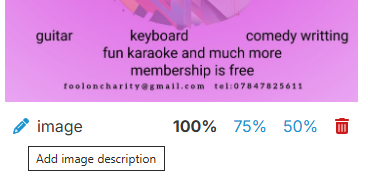
Alternatively, markdown syntax to add alt text when inserting an image, e.g. [your picture description|picture resolution, e.g. 640x480](website address/picture.jpg).
11. Optional Tags When Creating and Searching for Messages
When you create a new topic or message in BridgeNL, you have the option to add tags. These tags help categorise and organise posts and discussions beyond just categories.
What Are Tags?
- Tags are keywords or labels that provide additional context to a post.
- Unlike categories (which are more structured), tags are flexible and can be used across multiple categories.
- Example: If you post in a “Local News and Updates” category, you might add tags like
volunteering,club, orchildren.
Tags must be a single word. However, you can use these alternatives. Some ways to Format Multi-Word Tags are:
- Use hyphens (
-) →active-travel - Use underscores (
_) →charity_events - Use camelCase →
SummerClub
ꞮꞮ. How to Find Information for Publishing in “Local News and Updates” on BridgeNL
1. Avoid Scams
How to avoid scams while looking for Local News and Updates
When engaging on social media, always be cautious of scams and avoid sharing your personal details. Here are some tips to stay safe:
- Be wary of unsolicited messages or friend requests, especially from unknown accounts.
- Never share personal information like your address, phone number, or banking details.
- Look for red flags, such as offers that seem too good to be true, spelling errors, or urgent requests for money.
- Verify sources before clicking on links or downloading attachments.
- Use privacy settings to control who can see your posts and personal information.
Staying vigilant will help protect you from online threats!
2. Check Location
When joining a group, always check the group location to ensure it’s relevant to your area, as some groups and places may exist under the same name in different countries (e.g., Canada, the USA, and Australia). Here’s how to verify:
- Look at the group description for any indication of the location or regional focus.
- Check for local landmarks or references in posts or discussions.
- Review the members’ location (many groups display the general location of members).
- If possible, ask the group admin for confirmation on the group’s region.
3. Check Official Sources
How to Find Local News and Updates
Finding information on community events and activities is essential. Here’s a step-by-step guide on how to find updates that are suitable for publishing on BridgeNL:
- Visit local CVS organisations’ websites for event listings and community updates.
- Register with CVS mailing lists and subscribe
- Follow official CSV social media pages, community centres, local authorities, and known organisers.
- Check non-formal groups, community councils, councillors and look at social media groups covering particular localities within North Lanarkshire for posters of upcoming activities.
- Check community bulletin boards (both online and physical).
- Engage with neighbourhood WhatsApp or Telegram groups for informal event sharing.
4. Explore Hardest To Reach Community Groups & Forums
Join less obvious Facebook groups or Nextdoor pages that focus on niche interests or hidden community gems, such as:
- Hobby-based groups (e.g., local photography, hiking, gardening, or crafts)
- Parenting or school-related groups (often share family-friendly events)
- Buy/sell/trade groups (sometimes post about community fairs or markets)
- Volunteer and charity groups (highlighting local fundraisers and initiatives)
- Local history or heritage groups (may promote cultural events and talks)
- Local environmental groups (may promote gardening and litter picking)
5. Contact Local Organisations
- Visit OSCR (Scottish Charity Regulator) and use the search engine to find the local charities.
- Reach out to local schools and cultural groups for upcoming initiatives.
- Check with libraries, churches, and recreational centres that often host events.
4. Monitor Public Notices & Flyers
- Look at posters and flyers in local health centres, libraries, shops, cafés, and noticeboards.
- Subscribe to newsletters from local venues and event organisers.
5. Verify and Format for Publishing
- Ensure the event details are accurate and up-to-date.
- Confirm if the information is publicly available or requires permission to share. Always check whether content is marked as public, whether it’s owned by someone else, and whether the creator has granted permission for sharing. If in doubt, it’s safer to ask for permission before sharing posts or images.
- Format your post clearly with date, time, location, and key details before publishing on BridgeNL.
ꞮꞮꞮ. What to Publish on BridgeNL
What to Publish on Local News and Updates
Keeping your community informed is essential. Here’s a step-by-step guide on what to publish and how to share updates effectively on BridgeNL. To maintain the right balance, we focus primarily on publishing CVS information, updates, and posters from the third sector, along with occasional partner updates.
1. Identify Relevant News & Updates
Consider posting publicly available information (freely accessible on the internet) or shared with permission, including:
- Community Events: Announcements, schedules, and information about future local activities.
- New Initiatives & Projects: Updates on ongoing or upcoming community development efforts, stay tuned, upcoming events, planned community gatherings, and ongoing initiatives.
- Partner Poster and Updates: CVS and partner posters and updates.
- Last-Minute Events: Events that will take place the following day, or within the next few days.
- Scheduled Programmes: Planned future engagements and community calendars.
- Big Plans Ahead: Long-term connections and events.
- Important Notices: Policy changes, funding opportunities, or urgent community alerts.
- Opportunities for Engagement: Training, or public consultations.
- Volunteer Opportunities: Urgent Volunteer Opportunities, or special opportunities for one-off events.
- Job Opportunities: CVS Job Opportunities and suitable business job opportunities that are linked to CVS.
2. Write Clear & Engaging Content
- Headline: Keep it short, relevant, and attention-grabbing.
- Introduction: Briefly explain what the update is about and why it matters.
- Details: If the poster is not attached, the information must include key information - who, what, when, where, why, and how.
- Call to Action: Encourage people to participate, share, or learn more.
3. Add Visuals
- Include a poster or graphic to enhance engagement. You will be pleased to know that copy and paste works well here, so no need to save all of the posters before publishing on BridgeNL.
- Ensure visuals are clear, relevant, and appropriate for your audience.
- Always publish original posters in their original form.
4. What Not to Publish on BridgeNL
- No videos are allowed, but you can add links to videos.
- No personal or people photos are allowed unless embedded onto the poster created by an organisation.
- No self-advertisement of any kind. People’s photos are only allowed when embedded onto the poster created by an organisation.
- No business advertisements of any kind, except for social enterprises.
Please don’t publish success stories, past achievements, same-day events, testimonials, or inspiring stories here; they should be captured on the video portrait format, uploaded to YouTube with an attached link for mobile phone accessibility and sent via email to info@bridgenl.co.uk. After careful consideration, we will add them to our video success stories available on NL Community Portal.
5. Publish on BridgeNL
- Log in to the BridgeNL platform.
- Navigate to the News & Updates section and find the right locality, e.g. Airdrie News and Updates, or NL Wide News and Updates if the information can be useful across North Lanarkshire.
- Click Create Post and enter the subject and your content.
- Attach any images if needed.
- Review and publish!
- Once published, new users can edit their posts for up to 24 hours. More experienced users may have an extended editing window based on their trust level.
6. Promote & Engage
- To boost the reach, you can also share the update on social media, with people you work with, or email newsletters.
- Encourage community members to share and participate.
- Monitor feedback and respond to questions or discussions.
By following these steps, you’ll ensure your updates are informative, engaging, and impactful for the community.
This guide covers the essentials of using BridgeNL effectively. If you have further questions, explore the Help & Support section or contact an administrator / moderator on at: info@bridgenl.co.uk. 